How to play OG Fortnite Chapter 1 Season 3 again
Tilted Towers, Dusty Depot and the double pump: play Fortnite Chapter 1 Season 3 on ExA Cup's own server. The free ExA Cup launcher installs the season and signs you in.


Step by step
- 1Step 1
Install the launcher and sign in
Download the ExA Cup launcher from exacup.com, install it and sign in with your free ExA Cup account.
- 2Step 2
Get Fortnite
Choose Fortnite in the game list and press Get Fortnite. Pick the folder or drive it goes to; the launcher shows that drive's free space.
- 3Step 3
Let it download
The Season 3 build downloads and installs. You can pause and resume, and a dropped connection carries on by itself from where it stopped.
- 4Step 4
Play Fortnite
Press Play Fortnite. You are signed in with your ExA Cup account; no Epic Games account is used.
- 5Step 5
Ready up
When the lobby opens, press PLAY. Our matchmaker sends you to the ExA Cup server.
In the game


Squad up
Start a voice party in the launcher and invite your friends with one click: it keeps talking while the game is in front, so your squad can call out drops and rotations.
Questions
Yes. It is the Chapter 1 Season 3 game build, played on ExA Cup's own server instead of Epic's.
No. The launcher signs you in with your ExA Cup account.
8.1 GB, which unpacks to 17.4 GB. Keep about 26 GB free while it installs.
The launcher, your account, the download and the server are free.
More guides

 NFS Most Wanted · 4 steps
How to play NFS Most Wanted (2005) online in 2026
EA switched off Need for Speed: Most Wanted's online play in 2011. On ExA Cup it is back: get the free launcher, sign in, download the game and race your friends on our server, on Windows or on the Steam Deck.
Read the guide NFS Most Wanted · 6 steps
How to play NFS Most Wanted multiplayer with friends
Get your friends into the same NFS Most Wanted (2005) race: everyone installs the free ExA Cup launcher, you start a voice party, then one of you creates a race lobby and the others join it.
Read the guide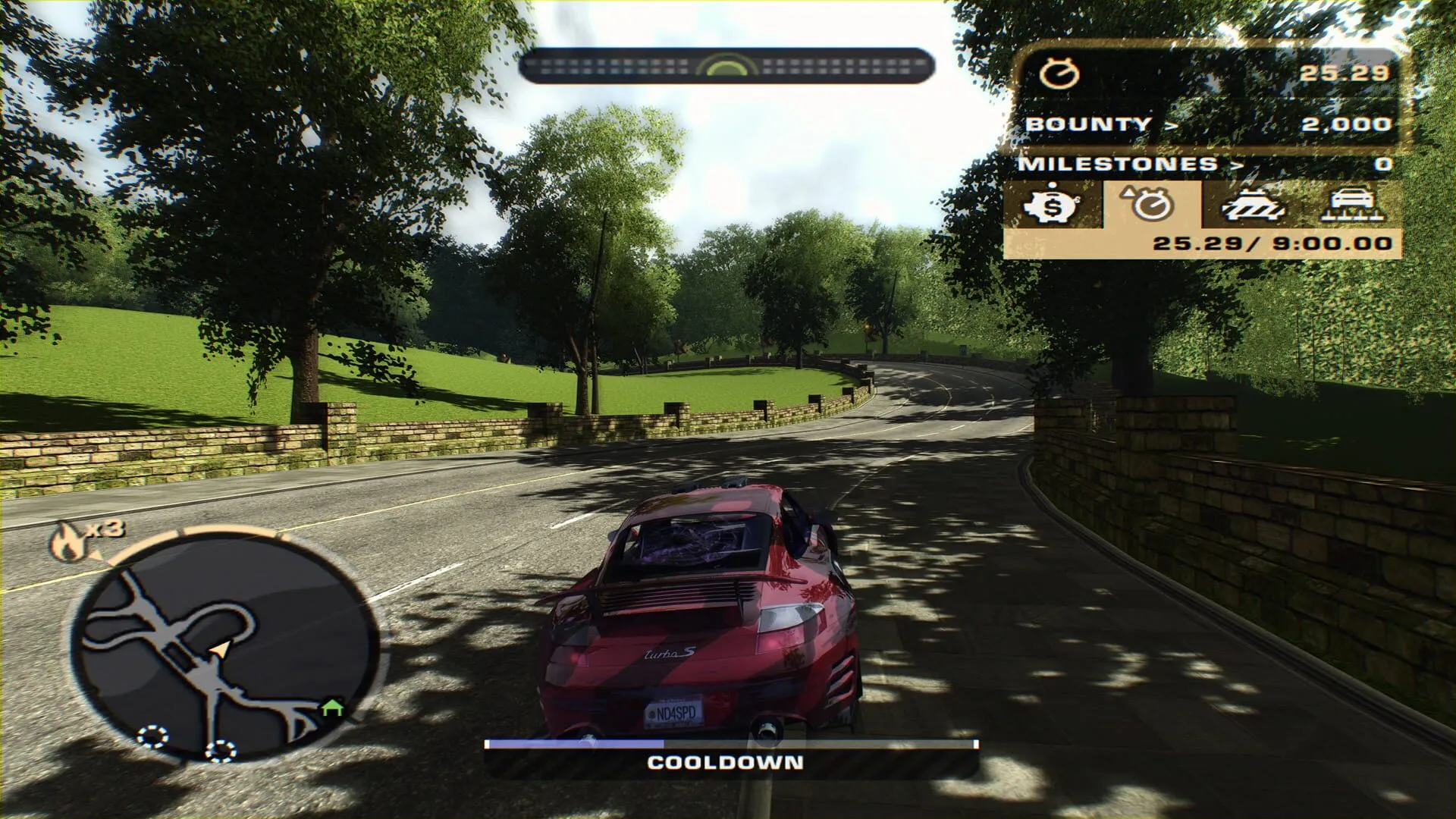 NFS Most Wanted · 6 steps
How to play NFS Most Wanted (2005) on the Steam Deck
Run NFS Most Wanted (2005) on the Steam Deck, online races included: install the free ExA Cup launcher in Desktop Mode, download the game, add it to your Steam library and start it from Game Mode with the controller.
Read the guide
Ready to play?
Get the free ExA Cup launcher, sign in and press Play. Your friends join your voice party with one click.