How to install the ExA Cup launcher on Linux and the Steam Deck
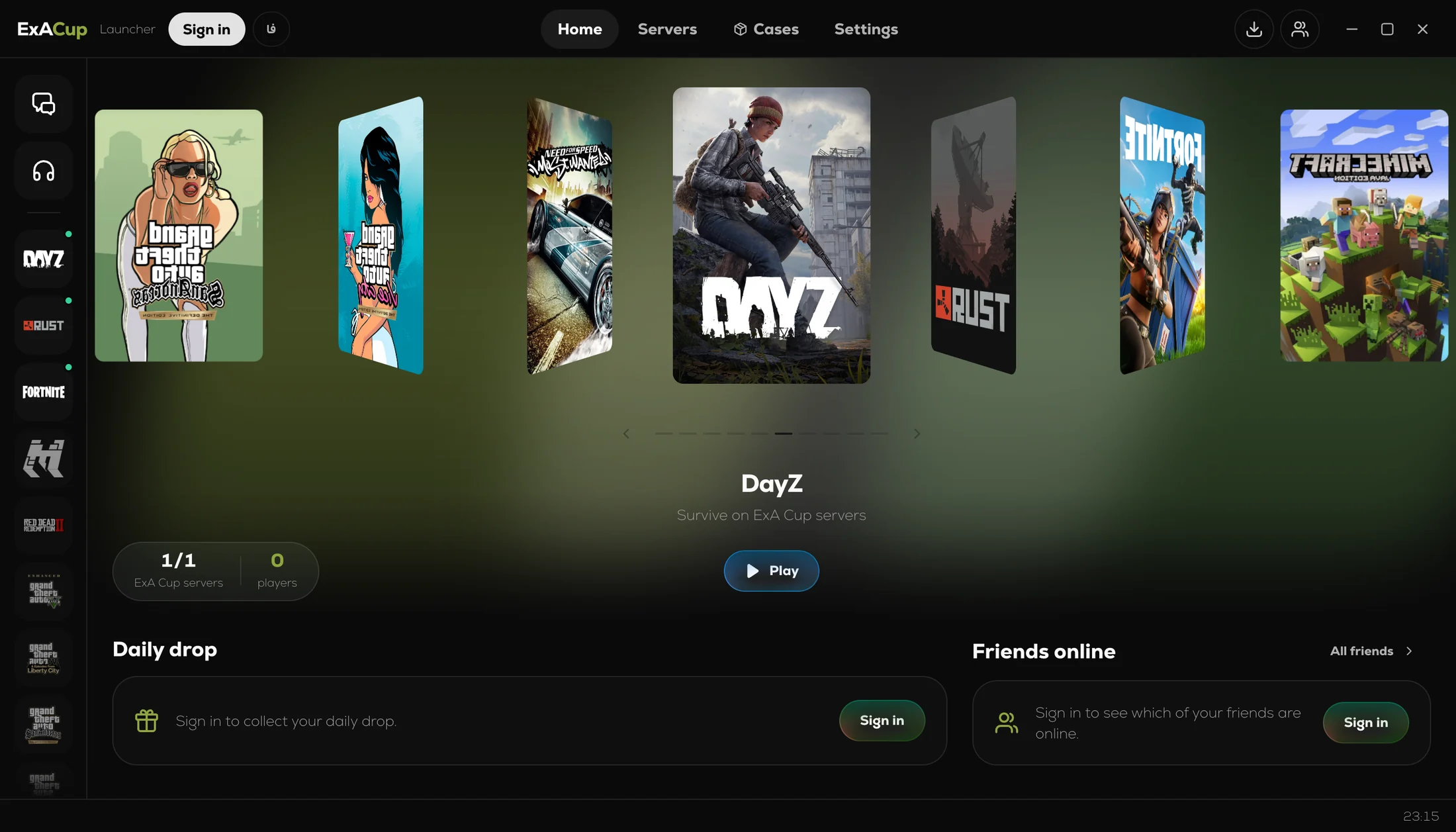
The ExA Cup launcher runs on Linux, the Steam Deck included. Here is how to download it, let it install itself, add it to Steam and open it from Game Mode with your controller.
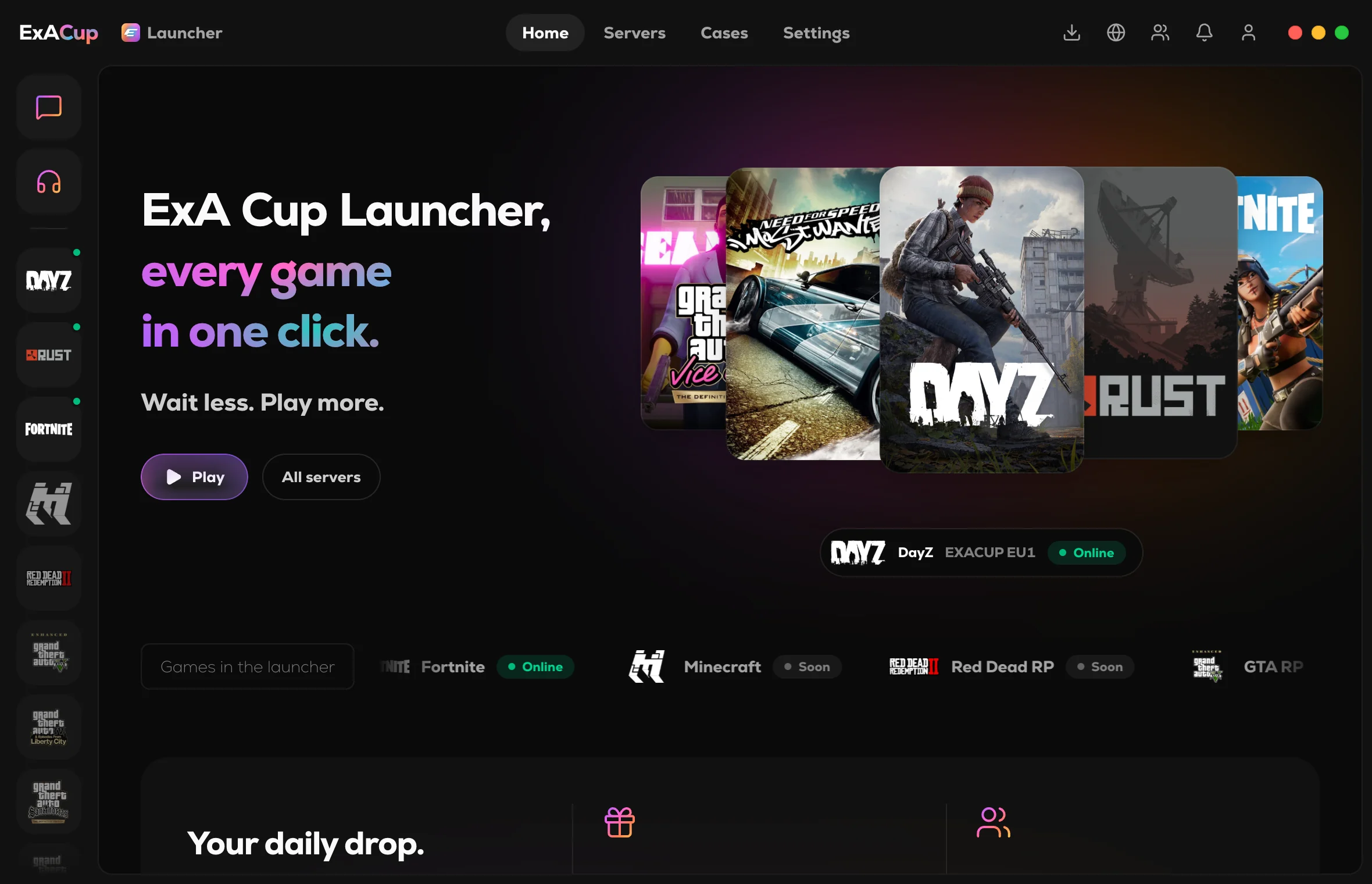
Step by step
- 1Step 1
Download it
On exacup.com, press Download for Linux. On a Steam Deck, do this in Desktop Mode.
- 2Step 2
Allow it to run
Right-click the file, open Properties, then Permissions, and allow it to run as a program. Then open it.
- 3Step 3
Let it install itself
The first time, the launcher asks to install itself. Say yes: it moves into your Applications folder, adds itself to your app menu and adds itself to Steam.
- 4Step 4
Sign in
Sign in with your ExA Cup account. Creating one is free.
- 5Step 5
Play from Game Mode
On a Steam Deck, go back to Game Mode: the launcher is in your Steam library with your other non-Steam games, and you can use it with the controller.
Windows games through Proton
The launcher runs our Windows games through Proton, each in its own folder, so one game's settings never touch another's. NFS Most Wanted plays this way on the Steam Deck, online races included.
OG Fortnite is Windows only for now.
Updates
The Linux launcher updates itself, like the Windows one: the new version downloads in the background and asks before it restarts.
Questions
Yes. We test on the Steam Deck: it opens from Game Mode and works with the controller.
It is an AppImage, so it runs on most 64-bit Linux desktops. It uses the Proton your Steam installed. We test on the Steam Deck.
No. A right-click to allow the file to run, and the launcher's own questions, are all it takes.
Yes, the launcher and the account are free.
More guides
- ExA Cup launcher
 ExA Cup launcher · 4 steps
Free voice chat with your friends while you play
Start a voice party in the ExA Cup launcher, invite your friends with one click and talk over any game. Free, with no server to rent, and your voices are encrypted between your PCs.
Read the guide - ExA Cup launcherExA Cup launcher · 5 steps
How to install the ExA Cup launcher on Windows
The ExA Cup launcher is a free Windows app that joins ExA Cup's game servers in one click, installs the files each game needs and has free voice parties and chat. Here is how to install it and sign in.
Read the guide - ExA Cup launcherExA Cup launcher · 5 steps
One game launcher for NFS Most Wanted, DayZ, Rust and OG Fortnite
The free ExA Cup launcher runs four games from one place: NFS Most Wanted (2005), DayZ, Rust and OG Fortnite Chapter 1 Season 3, with one account and one voice party for all of them. The launcher runs on Windows and Linux.
Read the guide
Ready to play?
Get the free ExA Cup launcher, sign in and press Play. Your friends join your voice party with one click.